Variable Trace Options Proprieties
You can record on database all the Movicon variable value changes by means of using the Trace properties.
To modify the Trace Options Properties of a variable. select the object with the mouse and use the Movicon 'Properties Window'.
|

|
If an ODBC link is used, the database containing variable Trace information will be created automatically by Movicon in the project's DATAfolder with the name "NameProject_TraceDB.mdb" in Access2000 format. The file name and ODBC link can be customized through the "Real Time DB Trace DB Settings" property from the 'Real Time DB' resource. A table will be created within the database for each variable enabled with the Tracer.
If an IMDB link is used,will be created automatically by Movicon in the project's 'LOGS' folder a file ".dat" and ".xml" for each variable enabled with the Tracer.
|
|
|
If the "Notify TimeStamp Changes" property has been enabled in the RealTimeDB "InUse Variable Manager" property group, the TraceDB will insert a new record even when the variable's TimeStamp changes only and not its value.
|
Enable Trace
This property enables or disables the trace management of the selected variables.
|

|
If the trace is enabled for a structure variable, Movicon will create one table only with the Structure Variable's name. However, the names of the Member variables which underwent changes will also then be inserted in the "Changer Column" field.
|
Table Name
By using this property you can define the name of the table where the trace data for the variables selected is to be recorded. If this field is left empty the table's name will be the same as the variable's name.
If the same "Table Name" is set in a diverse number of variables, these variables will then be able to share the same table. This will allow you to get different variables trace data recorded all on the same table.
For further information please see the paragraph entitled "Variable Tracing (Audit Trail)" .
Data Max.Age
This field is used for defining the how long the trace data is to be stored before being recycled. The time entered should be based on how frequently the variable changes to avoid creating tables with too much data. Practically speaking, more frequently the variable changes, more the recording time should be reduced.
For further information please refer to the paragraph: "Archive Sizes".
|
|
The maximum recording time is to be inserted according to your requirements, keeping in mind the frequency of variable changes and the kind of database to be used. For instance when using a Access2000 database you will more limited with the recording data quantity than you would be with a SQL Server database.
|
Enable Day Timeframe
This setting is used for enabling a recording day timeframe when the variable's trace functionality has been enabled. In this case the variable's trace recording will be executed only within the time specified in the 'Timeframe from' and 'Timeframe to' properties.
Timeframe from
The time in which the variable's trace starts is set here when the 'Enable Day Timeframe' option has been enabled.
Timeframe to
The time in which the variable's trace ends is set here when the 'Enable Day Timeframe' option has been enabled.
Add Msg to SysLog
When this setting is enabled a message will be recorded on the 'SysLog' (System Messages' Historical log) every time the variable's value changes. This setting is only valid if the variable's trace is enabled. Also information reported in the database will be recorded in the Historical Log file.
Add Variable Description Column
Enabling this setting will also add the "Description" of the variable being traced to the "Variable Description (TagDescCol)" column in the record table.
For further information please refer to the topic on "Variable Tracing (Audit Trail)".
Add Variable Group Column0
Enabling this setting will also add any Group to which variable, being traced, belongs to the "Variable Group(TagGroupNameCol)" column in the record table.
For further information please refer to the topic on "Variable Tracing(Audit Trail)".
Trace Comment
This setting, when enabled, allows you to insert a comment in the variable's trace Database each time the variable under goes any changes. This comment will be recorded in the "Action" field replacing the text written by Movicon for default. The following will open each time a variable undergoes a change:
|
|
The Trace Comment window is not managed with Web Client. In this case the acknowledgement command executed from Web Client will acknowledge the alarm without requiring the insertion of a comment.
|
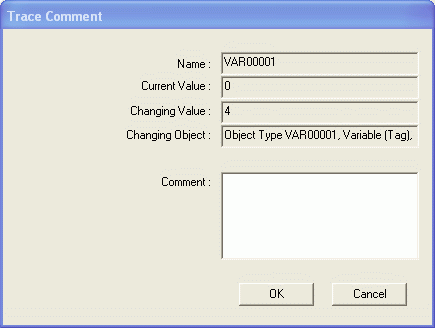
At this point the user can insert a comment in the appropriate window and confirm with "OK". The variable's value will only change when the user has confirmed with the "OK" key. If the "Cancel" button is pressed, the variable will not be changed and will keep its previous value.
You should take into consideration that comment do not need to be entered for those changes made to variables from logic which are not subjected to events undertaken by users. For example, this category includes the project or screen IL Logic, Communication Drivers, and the OPC. The window for entering comments will be called if the variable is changed by: Basic Script codes, controls taking action on variables, variable setting commands and in any point of the project they are set.
|
|
When the 'Trace Comment Window ' is opened on screen, the variable's value is frozen. Any other process, such as Communication Drivers, IL Logic and Basic Scripts cannot be change the variable's value.
|
When the "Add Msg to SysLog" property is enabled, the comment will also end up in the "DescCol" column from the "SysMsgs" table.
|

|
You can customize dialog window's character's font and size by using the appropriate registry keys:
TraceCommentFont
TraceCommentFontSize
Modifying the font or its size will also change the dialog window's sizes.
|
Create DB Table
This command executes the creation of the Variable Trace table within the database. If a table already exists it will be cancelled along with its next recreation when this command is executed. This means that any previously recorded data will be lost.