Tag Browser Window
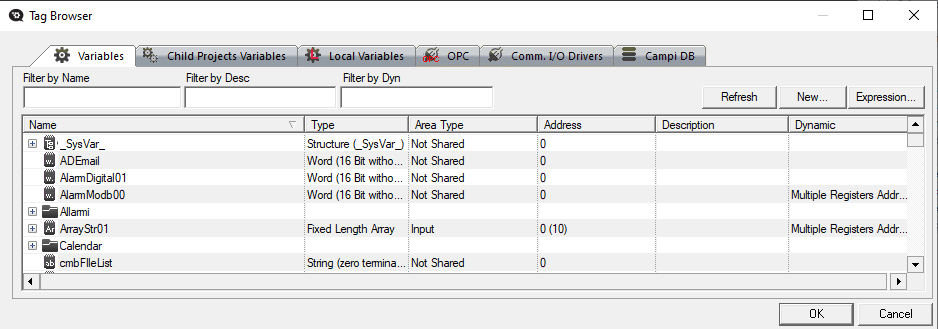
The "Tag Browser" window can be opened with the "..."
button in all object or resource properties where variables or dynamic
links can be entered. This window displays a list of all the project's
variables and dynamic links (OPC, Networking and Communication Drivers
and Data Base fields) which can be selected and then inserted in the object
and resource properties.

|
The
visualization of tabs for inserting dynamic links is disabled
for default. Therefore, to insert dynamic links using the "Tag
Browser", you will need to set the "ShowExtendedBrowseTag"
value to 1 in the project constraints file. There is no
default tag in this file and therefore it must be added
and set to 1. |
The "Tag Explorer"
window can also be opened with the F8 key when using the following windows
to edit script codes or IL logic:
The "Tag Explorer"
window opens when pressing the F8 key and after having selected the variable,
the focus will return to the point in which the variable was inserted
in the code. This will reduce the number of clicks/operations which are
usually needed to add variables to code.
|
The
"Tag Explorer" window cannot be opened with the F8 key
in the window used to edit a Basic Script resource because it
adopts a different function within this context. |
The types of selections available
when using Tag Browser's Tabs are:
Variables
This window shows the list of the variables available in the Real Time
DB for the project currently opened. The command buttons presented are:
Refresh:
refreshes the list taking into account any filter conditions inserted
in the "Filter" field
New...:
inserts a new variable in the Real Time DB by opening a window where you
can also edit the new variable's properties
Expression...:
opens a VBA Expression editor to allow you to insert a "Basic
Script Expressions " (this will replace the individual variable)
Variable properties can be edited by using a window which opens by right-clicking
on the variable you wish to edit.
Child Project Variables
This window shows the list of variables
available in the Real Time DB of eventual child projects. The 'Refresh'
and 'New' command buttons are provided with the same buttons provided
in the "Variables" group but they refer to the child project's
Real Time DB.
Network
This window allows you to select a local
project or one from a PC on the network and displays a list of the variables
which the project has been provided with for networking.
OPC
This window
is used to select a local or remote OPC DA Server in a networked
PC and it displays the list of OPC DA Items that the Server has available
for all OPC DA Clients.
|
It
is not possible to use the OPC UA Server browser to connect an
OPC UA Client Tag to a Movicon variable. Instead, the "New
Tag OPC UA Tag..." wizard in the "OPC UA
Client" project resource must be used to do this. |
Comm. I/O Drivers
This window consents you to add dynamic
links to the Communication Driver. The Drivers inserted in the project
will be displayed on the list and Tasks can be entered by double-clicking
on the driver of interest.
DB Fields
This window shows the list of
fields which can be associated to the Movicon "Embedded
Report" objects. These fields are in fact table columns
resulted from the query associated to the Report. For example, if
the Report has not been associated with any custom query, all the columns
in the table will be listed because the default query of the Report requires
the extraction of all the data in the table. However, if a custom
query has been specified in the report's "Query
Report" property, the list of fields will only show those columns
of the resulting recordset. In addition, it is also possible to
enter the name of the recordset field in the query, for example, by applying
a query with aliases as the column names. For example, if you execute
the following query:
SELECT UniID, EvDescCol, Count(UniID)
AS Frequency FROM Alarms WHERE EventCol = 'ALARM OFF' GROUP BY UniID,
evDescCol ORDER BY 3 DESC
It will be possible to select
the "Frequency" field from the list of fields even though it
is infact not a column from the "Alarms" table.
When enabling the "Alarm Statistic"
option afterwards, additional fields will be made available on the list
of which you can select for the Alarm statistics. These fields are:
_TotalNumOn_
_TotalNumAck_
_TotalNumReset_
_TotalTimeOn_
_ProgressiveId_
_DateTimeOn_
The values of these additional
fields, which do not belong to any of the tables, will be taken from statistical
data of each individual alarm. These statistical data are the same
data described in the "Alarm
Statistic" and "Alarm
Status File" paragraphs.
Movicon must be able to access
the database in order to compile the list of fields which are available.
If this is not possible due to various reasons, e.g. because there is
no ODBC connection or it is incorrect, or because the data extraction
query is incorrect, one of the following error messages will show:
A this point, you will be abe
to obtain more information on the error type by opening the Movicon Output
window and going to the "DBMS Log " tab.
|
When
you use an IMDB database, the list of fields will be populated
without considering whether or not a query has been entered and,
therefore, all table fields will be listed. In this case,
the report query will only evaluated at runtime only. |
Applying filters
to variables
When the "Variables"
and "Child Project Variables" tabs are selected in the Tag Browser,
three input fields will be made available for applying filters to the
variable lists to be displayed These three fields are:
Filter by Name: the text entered
in this field is used to filter the table's "Name" column,
therefore the name of the variable.
Filter by Desc.: the text entered
in this fileld will be used to filter the table's "Description"
column, therefore any variable descriptions
Filter by Dyn: the text inserted
in this field will be used to filter the "Dynamic" column,
therefore any variable dynamics.
All three entry fields support
the use of the "*" and "?" characters and they
can be used simultaneously for applying more detailed filters. In this
case, the three filter clauses are entered with "and" between
each one. Once the filter has been set, use the "Refresh"
button to apply the filter, or use the "enter" button when the
cursor is within one of the input fields.