This button is made active only when an alarm is selected. When no alarm has been selected, this button will result disabled.
Movicon Help on Line - Rel. 11.7.1302
The Alarm Window Style Properties are used to set the object's graphical aspects.
To edit the Style properties, select the object with the mouse and use the Movicon 'Properties Window'.
The "Alarm Window" and "Alarm Banner" style properties are used to set their graphical aspects. Some of these properties are specific to both objects, while others are only specific to one object and not the other.
This property is only available for the "Alarm Banner" object and allows existing alarms to be scrolled automatically. If this property is not enabled, the scroll will only work manually using the spin button provided. New alarm activations will be automatically displayed when scrolling automatically and manually.
This property is only available for the "Alarm Banner" and a Spin button can be associated to this object to scroll alarms manually. The manual scroll does not work continuously in a loop. When it reaches the end of the list, the spin button deactivates and another button has to be used in order to return back to the beginning.
This property is only available for the "Alarm Banner", and is used to set the Spin Button vertically or horizontally.
This property is only available for the "Alarm Banner" and is used to select the Spin button size. The sizes to choose from are:
small
medium
large
This property is only available for the "Alarm Banner" and is used to show alarm activation dates and times in addition to the alarm text. In this case, the date and time will be placed before the alarm text. The date and time format can be customized in the "Time Format" property afterwards.
This property is only available for the "Alarm Banner" and is used to define the list of alarms to show in order of severity. When enabled, the alarms will be listed by severity, starting with the highest (1 = lowest serverity). Alarms with the same severity will be scrolled based on activation time from the most recent to the oldest. If this property is not enabled, the scroll sequence will be based on activation time only, starting with the most recent to the oldest.
The 'Border' property is described in the paragraph on "Style Proprieties common to Drawings and Controls".
The 'Clickable' property is described in the paragraph on "Style Proprieties common to Drawings and Controls".
The 'Auto Layout' property is described in the paragraph on "Style Proprieties common to Drawings and Controls".
Show Control Wnd
The 'Show Control Wnd' property is described in the paragraph on "Style Proprieties common to Drawings and Controls".
This property allows you to activate the help to show for default for each alarm row. Otherwise, the help will only show when the alarm row is double-clicked on. This only works for those alarms which have a help string.
This option enables the command button for acknowledging the alarms selected in the Alarm Window. One or more alarms have to selected in order to carry out this action in Runtime.
|
|
This button is made active only when an alarm is selected. When no alarm has been selected, this button will result disabled. |
This option enables the command button for acknowledging all the alarms displayed in the Alarm Window, without needing to select them beforehand.
|
|
When an Alarm Window from a Network Client project is connected to a Network Server, the "Ack All" command sends an acknowledgement command to the Server for all alarms displayed in the Client window. In this way, if a filter has been applied to the Client's window area, only the alarms that belong to that area will be acknowledged. |
This option enables the command button for resetting the alarms selected in the Alarm Window. One or more alarms, previously acknowledged with the 'Ack sel' or 'Ack All' button, must be selected in order for this to work at Runtime.
|
|
This button becomes active only when an alarm has been selected. When no alarm has been selected, this button will remain inactive. |
This option enables the command button for resetting all the alarms displayed in the Alarm Window, without needing to select them beforehand, and only if previously acknowledged with the 'Ack Sel' or 'Ack All' button.
|
|
When an Alarm Window from a Network Client project is connect to a Network Server, the "Reset All" command sends a reset command to the Server for all alarms displayed in the Client window. In this way, if a filter has been applied to the Client's window area, only the alarms that belong to that area will be reset. |
This option makes the command button available for activating or deactivating the acoustic sounds associated to the unacknowledged alarm priorities. This button activates when pressed down and is retentive. Therefore, the user can see whether the acoustic sound has been activated or not by looking at the button's status graphically on screen (pressed or released). The button status can also be retentive to retain its settings when closing and reopening the project. The button's status is directly linked to the corresponding system "AlarmSoundState" variable. Therefore, it is also possible to manage this variable with IL Logic, VBA or by using a Variable command type (i.e. with the 'Toggle' action at 1) to enable or disable the alarm sounds. Changing the status on one will automatically change the status of the other and vice-versa. (For further information on managing alarm sounds relating to user levels please refer to the section on "Alarms Sound Management")
|
|
In conclusion, the Alarm Window's "Enable Sound" button and the "AlarmsSoundState" system variable both enable the sounds of alarms according to the setting customized for each user. Conversely, the "Alarms - Enable sound" command (settable in the object's command list) and a double-click on the blinking alarm in the Movicon status bar will silence the sound temporarily. The sound will recommence upon a status change of a listed alarm or when a new alarm appears. This effect of this command effect is temporary and does not interact with the status of individual users. |
|
|
The Sound Button is also enabled in the Client project (or WebClient) Alarm window, and the consequent warning sound is managed in function with the user used for connecting to the Server (user inserted in the "Network Client Settings" from the Client project's "Network Services" resource or the user inserted in the "Default Log On User" property from the Server project's "Network Client" resource). |
|
|
The window sound button in Web Clients is available on the Java Applet windows status bar. For further information, please refer to "Alarm sound management". |
The sound which is reproduced by Movicon for default is a repetitive 'beep'. This sound is handled differently according to which 32 bit or 64 bit operating system is being used:
32 bit Operating System: the beep is executed for default using the PC buzzer. In this case the PC's audio card is not involved.
64 bit Operating System: an operating system function executes a system sound to reproduce the beep for default. This sound is reproduced using the PC's audio card, which should be enabled and in good working condition, managed by the operating system and it cannot be retrieved as a ".wav" file. In addition, this sound is played at low volumn and, therefore, difficult to hear.
A custom ".wav" file can also be used instead of the default beep. To do this, you must set the following two Windows registry keys:
UsePCSpeaker: this value is inserted in the Windows registry key set at the "0" value to execute a ".wav" file to replace the beep. The name of the ".wav" file must be specified in the "AlarmSound" key
AlarmSound: the name of the ".wav" file to be executed instead of the beep when the "UsePCSpeaker" key is set at "0" is inserted in this value. After doing this, the ".wav" file must then be copied to the Movicon installation folder.
Selecting this will provide a command button to open the selected alarm's help file. The alarm's help file is executed as described in the section on "Alarm Help in the Alarms Window".
|
|
This button becomes actve only when an alarm is selected. When no alarm is selected, this button will remain inactive. |
|
|
The Help Button is not enabled in Client (or WebClient) project Alarm Windows, but only in Server projects. The alarm Help is managed by the Alarm Window for local project alarms onlyand not for alarms retrieved from Network Server projects. |
Selecting this will enable the command button to display the selected alarm's history, that is all of the "Alarms Historical", showing all of the status transitions which verified while the alarm was active.
|
|
This button is only activated when an alarm is selected. This button will remain disabled when no alarm has been selected. |
The alarm's history can be retrieved by using this button or by pressing the "Shift" key and double-clicking on the alarm at the same tiime or by selecting the alarm and pressing the "G" key. This feature is also supported by the Alarm Window when connected to a Network Server project.
Selecting this will enable the command button used to enter a comment for the alarm selected in the window. This button is only enabled when one or more alarms have been selected. When pressing this button, a dialog window will open to allow the user to enter a comment to associate to the selected alarm and which will be persistent in the retentive file. This comment will be inserted in all the alarms selected in a multi-alarm selection. The window used to enter the comment has an "OK" button to confirm the text entered (the Enter key can be used as an alternative), a "Cancel" button to delete the text just entered (Exit key also does the same job) and a "Pad" button to open a alphanumeric pad for comment editing. Alarm comments can be accessed through the "LastComment " basic script function.
|
|
The Comment Button is not enabled in client project (or WebClient) Alarm Windows, but only in Server projects. Alarm comments are managed by the Alarm Window only for local project alarms and not for those retrieved from Network Server projects. |
The text to appear on the "Comment Button" is entered in this edit box. The default text will be used when left blank.
The 'Button Size' property is described in the paragraph on "Style Proprieties common to Drawings and Controls".
The 'Align Buttons' property is described in the paragraph on "Style Proprieties common to Drawings and Controls".
The text to appear on the 'Ack Sel Button' is entered in this edit box. The default text will be used if left blank.
The text to appear on the 'Ack All Button' is entered in this edit box. The default text will be used if left blank.
The text to appear on the 'Reset Sel Button' is entered in this edit box. The default text will be used if left blank.
The text to appear on the 'Reset All Button' is entered in this edit box. The default text will be used if left blank.
The text to appear on the 'Toggle Sound Button' is entered in this edit box. The default text will be used if left blank.
The text to appear on the "Help Button" is inserted in this edit box. The default text will be used if this field is left blank.
The text to appear in the "Get History Button" is inserted in this edit box. The default text will be used if this field is left blank.
The text to appear as the "Alarm Description" column's name is entered in this edit box. The default text will be used if left blank.
The text to appear as the "Time ON" column's name is entered in this edit box. The default text will be used if left blank.
The text to appear as the "Time ACK" column's name is entered in this edit box. The default text will be used if left blank.
The text to appear as the "Time OFF" column's name is entered in this edit box. The default text will be used if left blank.
The text to appear as the "Time RESET" column's name is entered in this edit box. The default text will be used if left blank.
The text to appear as the "Duration" column's name is entered in this edit box. The default text will be used if left blank.
Alarm Total Time ON Column Name
The text to appear as the "Total Time ON" column's name is entered in this edit box. The default text will be used if left blank.
The text to appear as the "Severity" column's name is entered in this edit box. The default text will be used if left blank.
The text to appear as the "Status" column's name is entered in this edit box. The default text will be used if left blank.
The text to appear as the "Condition" column's name is entered in this edit box. The default text will be used if left blank.
The text to appear as the "Image" column's name is inserted in this edit box. The default text will be used if left blank.
The "Data Format" property is described in the paragraph on Design and Control "Stile Properties" .
The "Duration Time Format"property is described in the paragraph on Design and Control "Stile Properties" .
This "Include milliseconds" is described in the "Object Style Properties" paragraph from the Drawings and Controls section.
This entry box is used to enter a filter that can be used to display alarms belonging to a certain area only. This filter can contain the following special characters:
'*' : the asterisk indicates one or more chars (*Area*).
'?' : the question mark indicates only one char (Area?).
'[xyz]' o '[x-y]' :[1-3] the square brackets indicate a char. set (Area or Area[13] or Area[A-D]).
|
|
Queries entered with square brackets are not case-sensitive, therefore you will need to always use upper-case chars even when the chars to be searched for are in lower-case. For further information on creating alarm areas see topic: "Alarms-inserting alarms".
|
A filter for displaying alarms according to their texts can be entered in this field. The filter is applied to the "Desc. Column" column and may contain the following special chars:
'*' : the asterisk indicates one or more chars (*Motor*).
'?' : the question mark indicates only one char (Motor?).
'[xyz]' o '[x-y]' :the square brackets indicate a char. set (MotorArea or Area[13] or Area[A-D]).
|
|
Searches using square brackets are not case-sensitive therefore you will need to always insert upper-case chars even when chars to be searched for are in lower-case. |
A filter can be entered in this box to display alarms based on their severity. The value entered here must be the severity value (value "1" indicates the lowest severity) you wish to use for applying the filter. Once the severity value has been set, you will need to also set the "Alarm Severity Filter Condition" with the condition type to apply the filter with. No filter based on alarm severity will be applied when leaving this value set for default at zero.
|
|
The filter by severity is also supported in cases where the "alarms Window" is used for retrieving alarms from a Network Server Project (therefore both in Networking and WebClient). |
Alarm Severity Filter Condition
This property consents you to set the condition to be used by the alarm severity filter. This setting will be skipped when leaving the " Alarm Severity Filter" set at the "0" value. The options are:
equal: alarms with severity equal to the one set in the "Alarm Severity Filter" property will be displayed only
minor-equal: alarms with minor or equal severities set in their "Alarm Severity Filter" properties will only be displayed
major-equal: alarms with major or equal severities set in their "Alarm Severity Filter" properties will only be displayed
A filter based on the status of the alarms to be displayed in the window can be set in this property. Click on the '...' button on the far right of the property to open the following settings window:
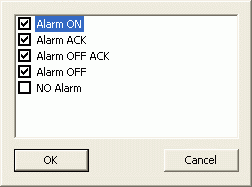
The filters are:
Alarm ON: active alarms which have not yet been acknowledged will be displayed
Alarm ACK: active alarms which have been acknowledged but not yet reset will be displayed
Alarm OFF ACK: inactive alarms which have been acknowledged but not reset will be displayed
Alarm OFF: inactive alarms which have been either acknowledged or not acknowledged but not yet reset will be displayed
NO Alarm: inactive alarms which have already been acknowledged and reset will be displayed
Historical Log Item Back Color
This property allows you to select the color to associate to the background of the alarm historical data display area. To view alarm historicals, use the "Get History" button.
Colors are selected by using the color palette with the standard selection procedures.
Historical Log Item Text Color
This property allows you to select the color to associate to the text in the alarm historical data display area. To view alarm historicals, use the "Get History" button.
Colors are selected by using the color palette with the standard selection procedures.