Movicon Help on Line - Rel. 11.7.1302
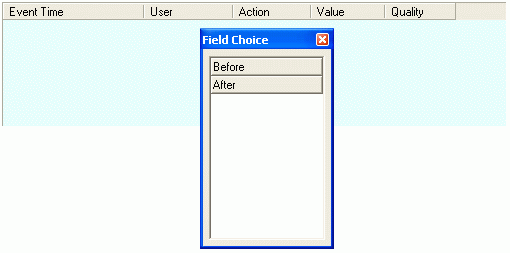
The TraceDB Window object allows you to select the fields or columns to be displayed. This can be done by using the 'Field Choice' window which is accessed by clicking on the 'Open' button from the 'General' group in the object's 'Properties Window', or by double-clicking and keeping the mouse button pressed on the object while pressing the 'SHIFT' key at the same time.
The available fields which have not yet been inserted into the TraceDB Window will be listed in the 'Field Choice' window. To move a field from the 'Field Choice' window to the TraceDB Window, simply select the field with the mouse and drag it to the position desired in the TraceDB Window. Note that the field can only be released at the beginning or end of an already positioned field, and that two red arrows should appear while doing so:
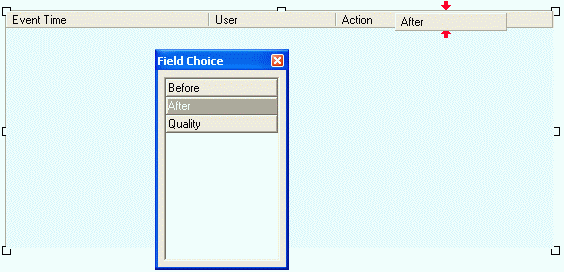
To move a field from the TraceDB Window to the 'Field Choice' window, simply select the field with the mouse and drag it onto the 'Field Choice' window.
|
When the window is set with the "Show Control Wnd" option, you will be able to drag columns out of the window at Runtime in order to delete them. You can, however, restore the initial configuration by using the "RecalcLayout" basic script method from the TraceDBWndCmdTarget interface or by reloading the screen page. |