Introduction
Hello and welcome in this new tutorial on how to best use Connext™.
In this tutorial you will learn how to install Connext™ software. The following is a key step to the proper use of the platform.
Procedure
Download of Connext software
In order to install Connext software, it is necessary to download it. It is possible to obtain the trial version of the software from the link below::
https://go.emersonautomation.com/connext-software-download
The link will open the following page:
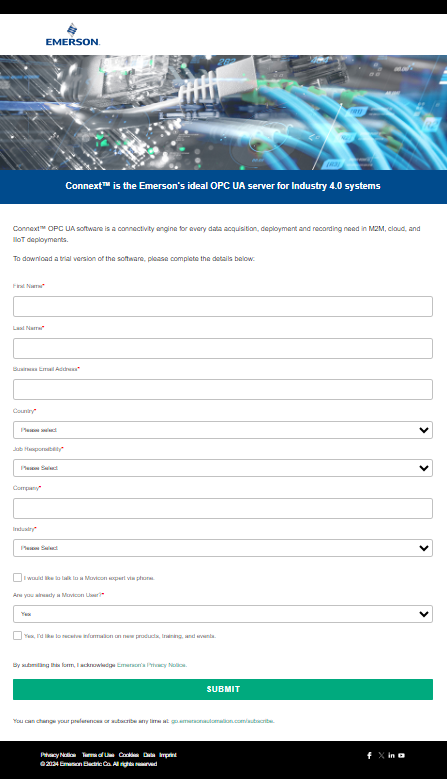
Once all the data have been entered, an email will be sent with the link for downloading the software to the email address given in the form.
Clicking on the link Pro.Energy will be downloaded.
Installation of Connext software
Once the download of the installation setup of Pro.Energy is finished, you can proceed with the installation.
First, start the setup by double-clicking on the executable
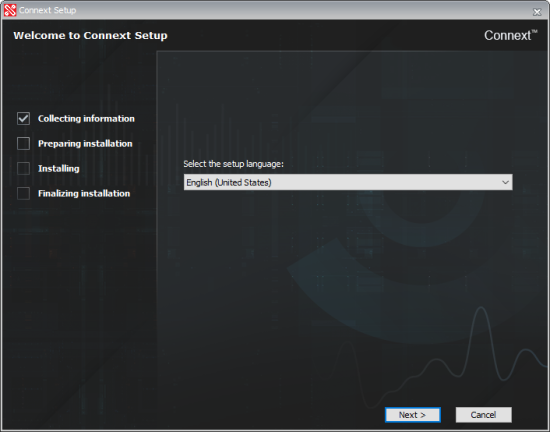
"SetupConnext.exe". In the window that has just appeared, choose the language in which the software is to be installed. Click on the Next button to continue.
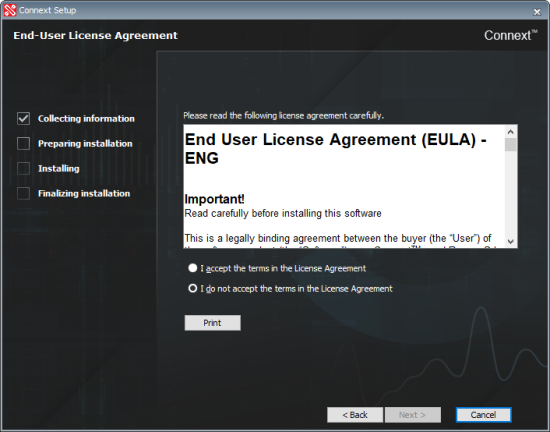
The next window shows the terms of the license agreement. In order to continue, accept them and click on the Next button.
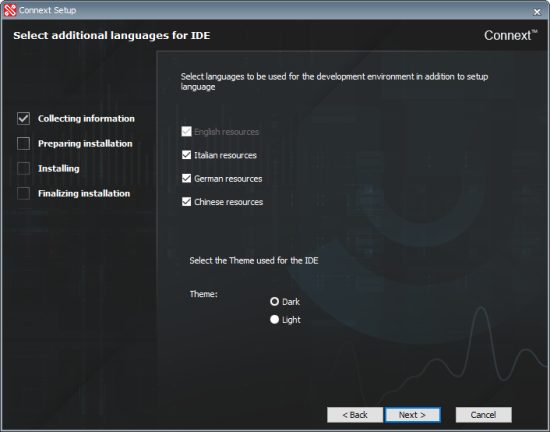
The next selection will be to choose the language(s) in which the product resources will be installed and the theme of the development environment (Integrated Development Environment) on a light or dark background. Click on the Next button in order to continue with the configuration of the product.
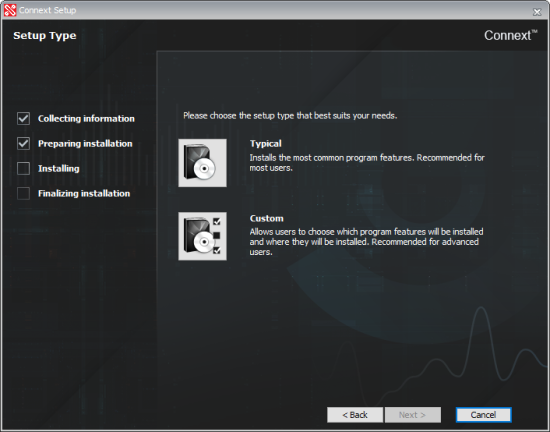
At this point of the installation you will be asked whether to continue with "Typical" mode (recommended choice) or "Custom". As for the "Custom" mode, you will be able to assign some specific parameters and specify the program installation path.
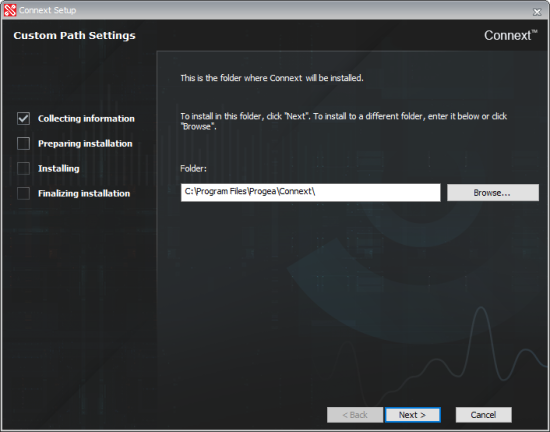
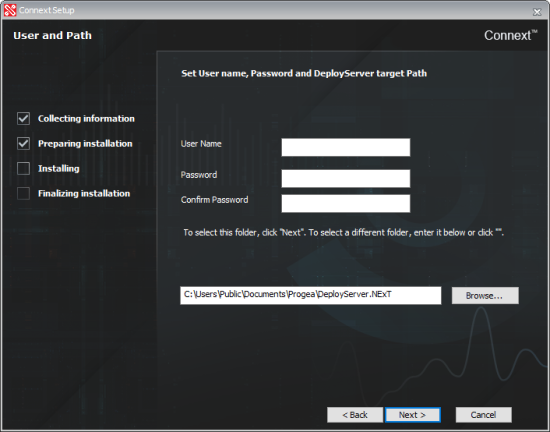
Once you have finished customizing the installation path, you have the ability to preconfigure the installation path and user for the DeployServer installation on the machine where is present also the editor.
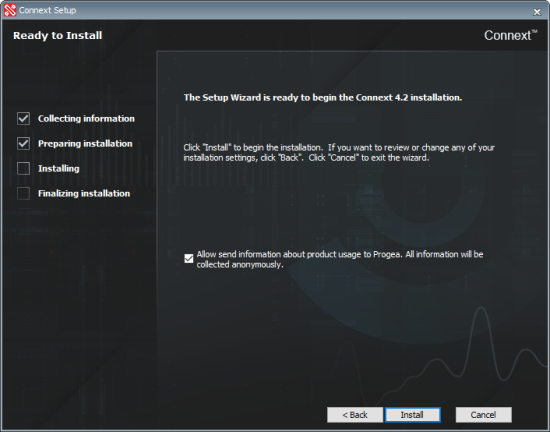
The next step is to initialize the actual installation of the files on the machine. Click on the Install button to start the installation of the software.
Finally after completing all the steps of the wizard it will be sufficient to click on the Finish button to finish the installation of the product.