Getting Started with Movicon - Rel. 11.7.1302
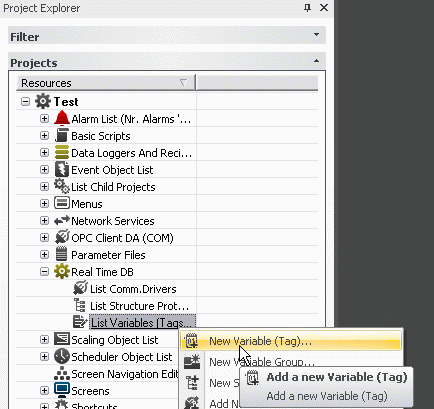
To introduce a new variable (Tag) into the project you need to:
1. Select the Real-Time Database resource from the project window
2. Select the “Add a new Variable” command from the Command Pane found at the bottom of the project window. You can also use the analog command by using the right mouse key.
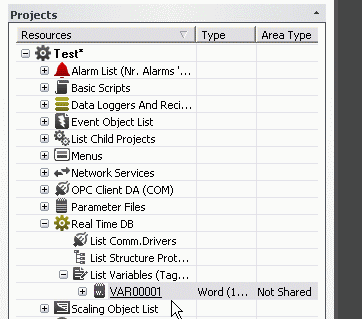
A new variable will be created in the project with default name and properties. The Properties Window, if hidden, is displayed by double-clicking on the new variable (if can be further displayed by using the relevant command from the ‘View’ menu).
You now need to assign the properties deemed necessary, especially the General properties, through the ’Properties Window’.
In our case we shall keep the default settings, with the PLC address to be assigned later.
However we shall briefly go over the main properties for you:
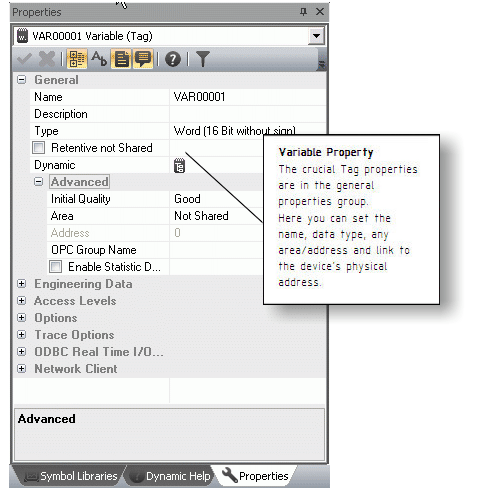
Let’s go over which are the fundamental properties of each Tag:
Name: permits you to assign the name desired for the variable.
Type: permits you to specify the data type (bit, byte, word, etc.)
Area: permits you to indicate whether an explicit memory area is to be used for the supervisor. When leaving the area as ‘Not Shared’, the supervisor will decide if the tag must be considered for the licence. The tag will be counted for the licence only if it’s exchanged with the field through the driver, OPC, etc..
Dynamic Address: permits you to set the physical address to connect to the Tag to. The Tags Explorer can be used to specify the connection by means of an I/O Driver, OPC or Networking.
All the other properties allow you to go and specify the Tag’s behaviour, in the project, in detail. We, therefore, advise you to refer to the Programmer’s Manual for further details.
We will leave the Tag with its default settings for the time being.