Getting Started with Movicon - Rel. 11.7.1302
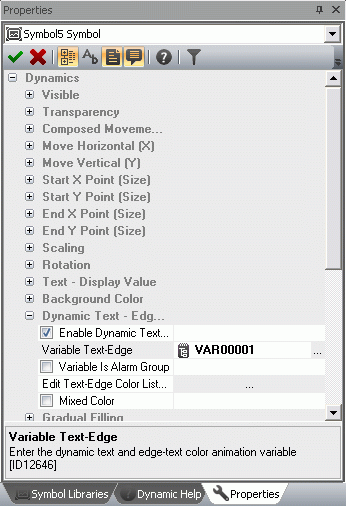
In our example we have chosen to assign the animation properties to color the drawing’s background in function with the VAR00001 tag previously introduced.
1. Activate the screen where the graphic symbols were inserted as described above.
2. Select the rectangle shape representing a tube.
3. Double-click or use the other techniques to display the Properties Window.
4. Select the Animation group from the Properties Window and then the Back Color item.
Check the ‘Enable’ box to enable the pre-selected animation function, then select the tag among those inserted in the project’s RealTime DB.
Then select the ‘Edit back color list’ to set the activation thresholds of the tag and the relating colors to be displayed.
A window for setting how the Thresholds should appear.
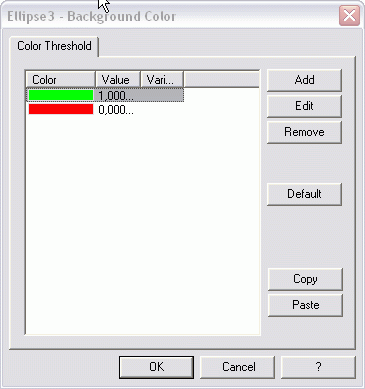
The window contains a series of standard default thresholds. Use the relative commands on the side to delete, add of edit them.
Use the relative settings window, shown below, to add or edit the animation characteristics:
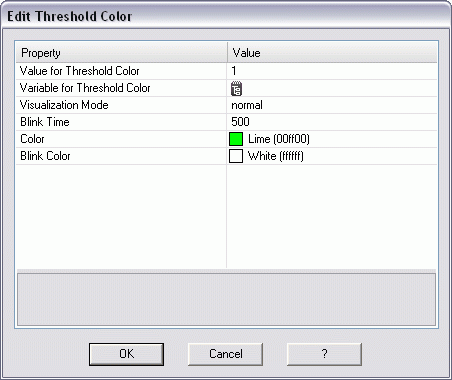
By using this window you can set the threshold values and the animation colors, as well as other properties which are explained in the Programmer’s Manual.
Confirm the settings with OK.
|
|
When you Run the project, changing the real-time value of Tag VAR00001, you will see the rectangle shape change color. Attention: the “Variable for Threshold Color” in this threshold settings window consents to making the activation threshold dynamic. This variable, however, MUST NOT be used in the 'Background color' property, otherwise the color animation will not work correctly by showing only the same color without changing. |
|
|
TIP: Variables can be associated to objects by directly dragging them from the RealTimeDB resource and dropping them on the objects on screen. |
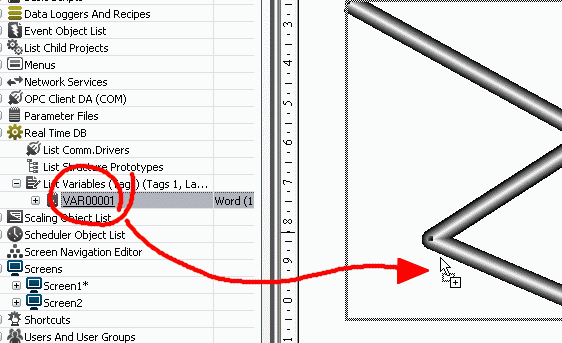
When you select a variable from the variable list and drag and drop it on an object in the screen, a window will display allowing you to select which animations to associate to that variable.
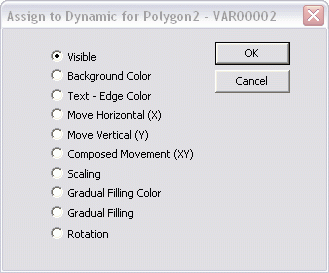
However, the threshold color settings remain at the user's discretion.