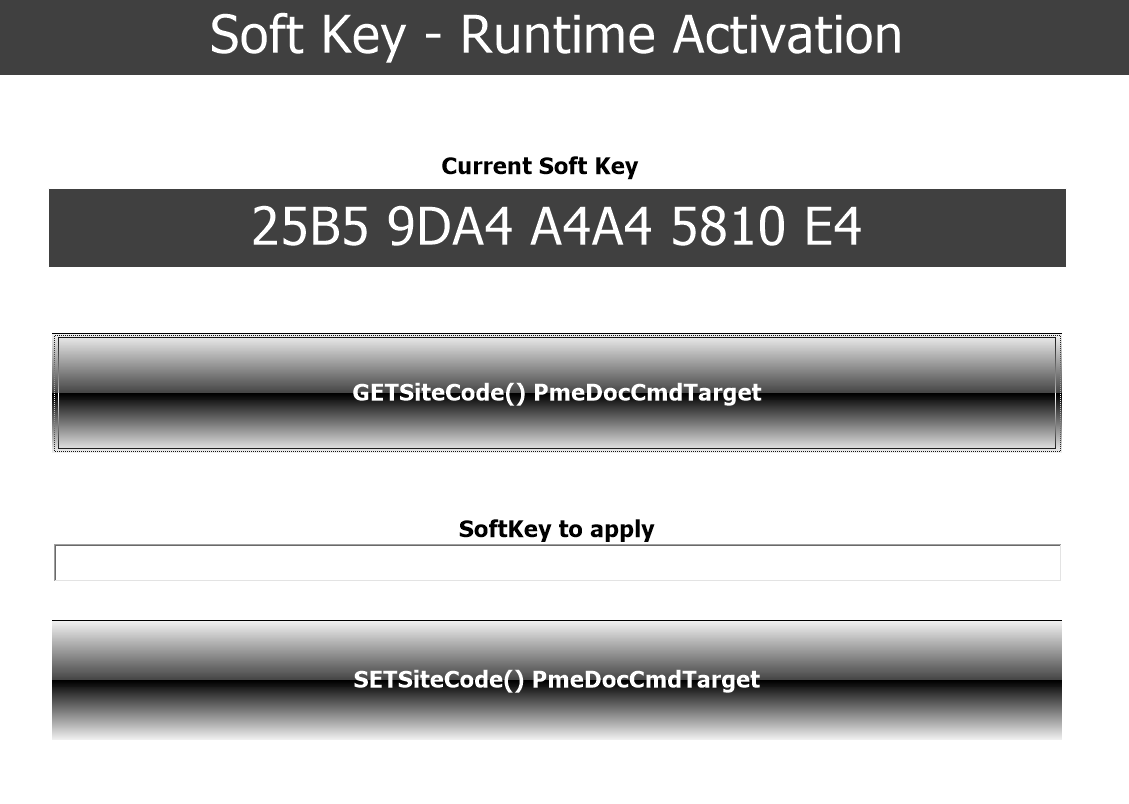
ADODB.NET Parameter
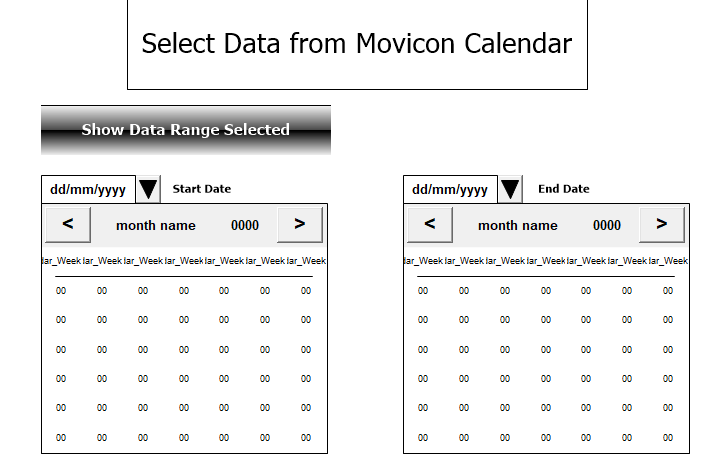
Calendar Date Selection
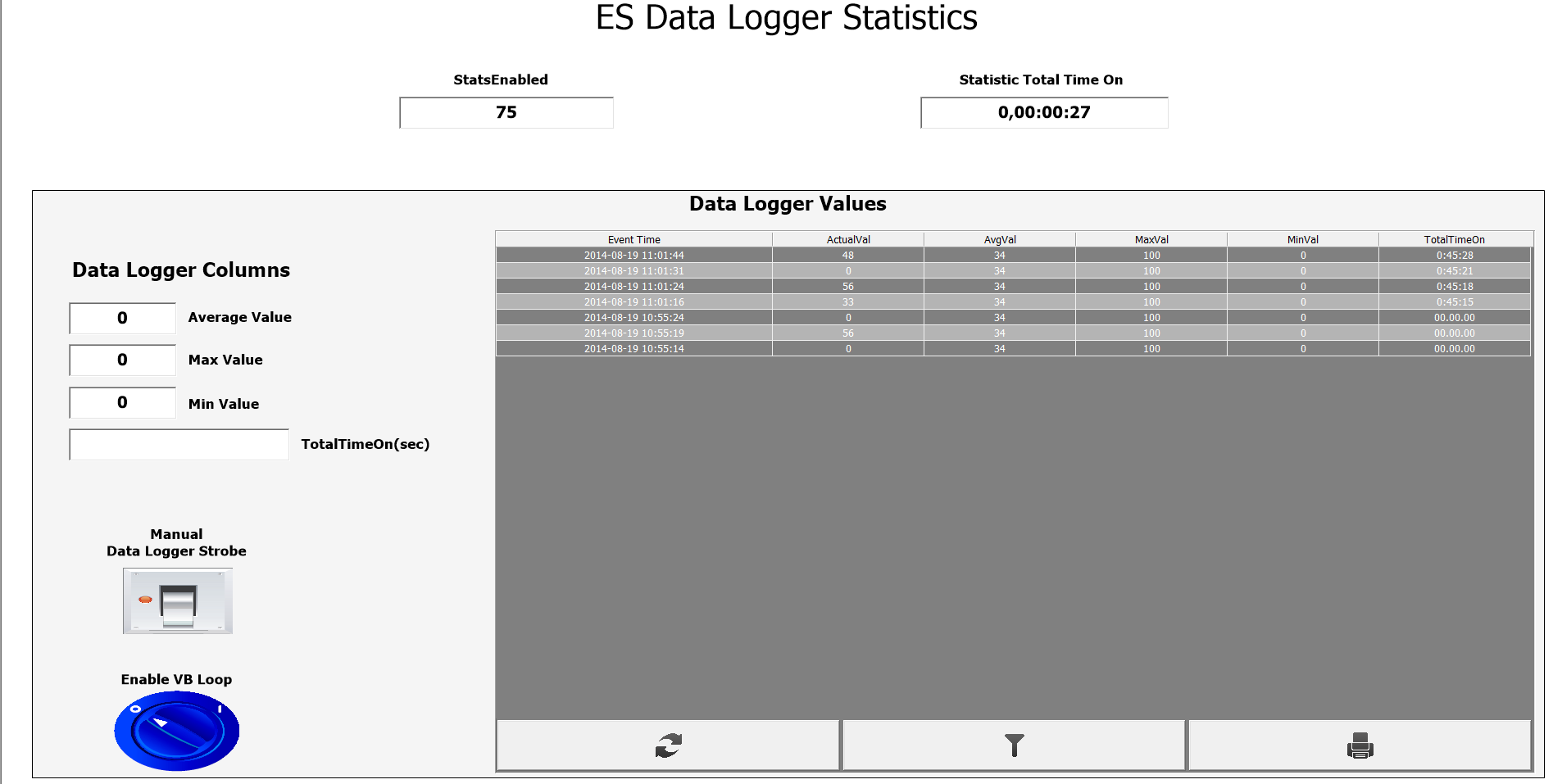
Data Logger Statistics
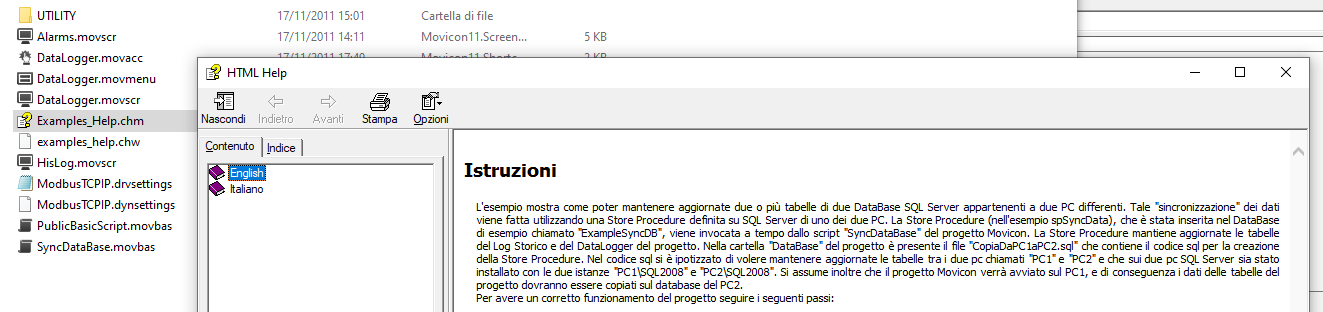
Synchronization with DB
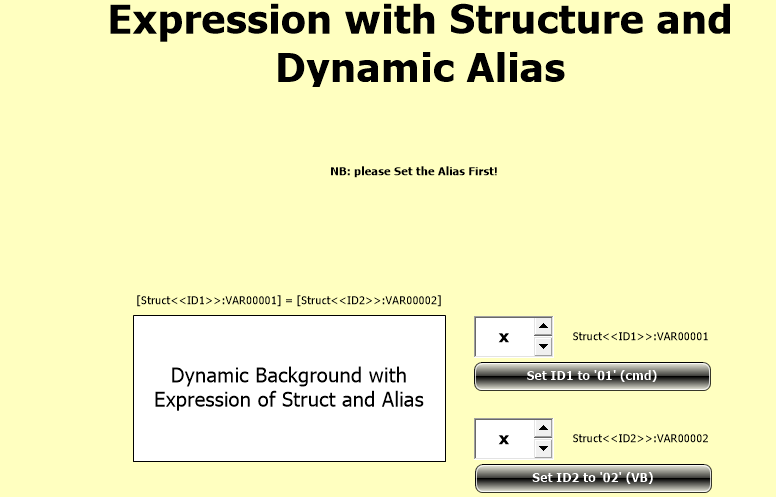
Expression Structure Alias
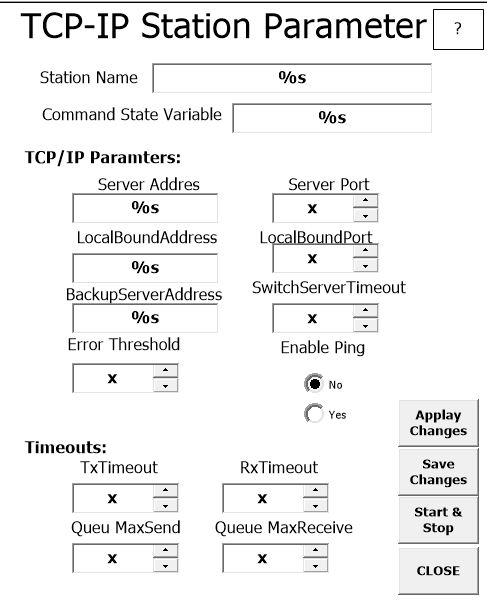
ModbusTCP VBA Station Management
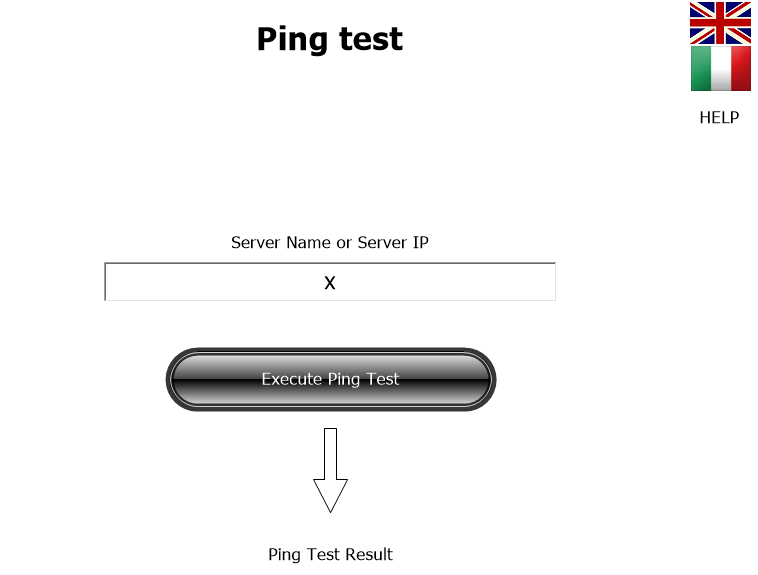
Ping Test
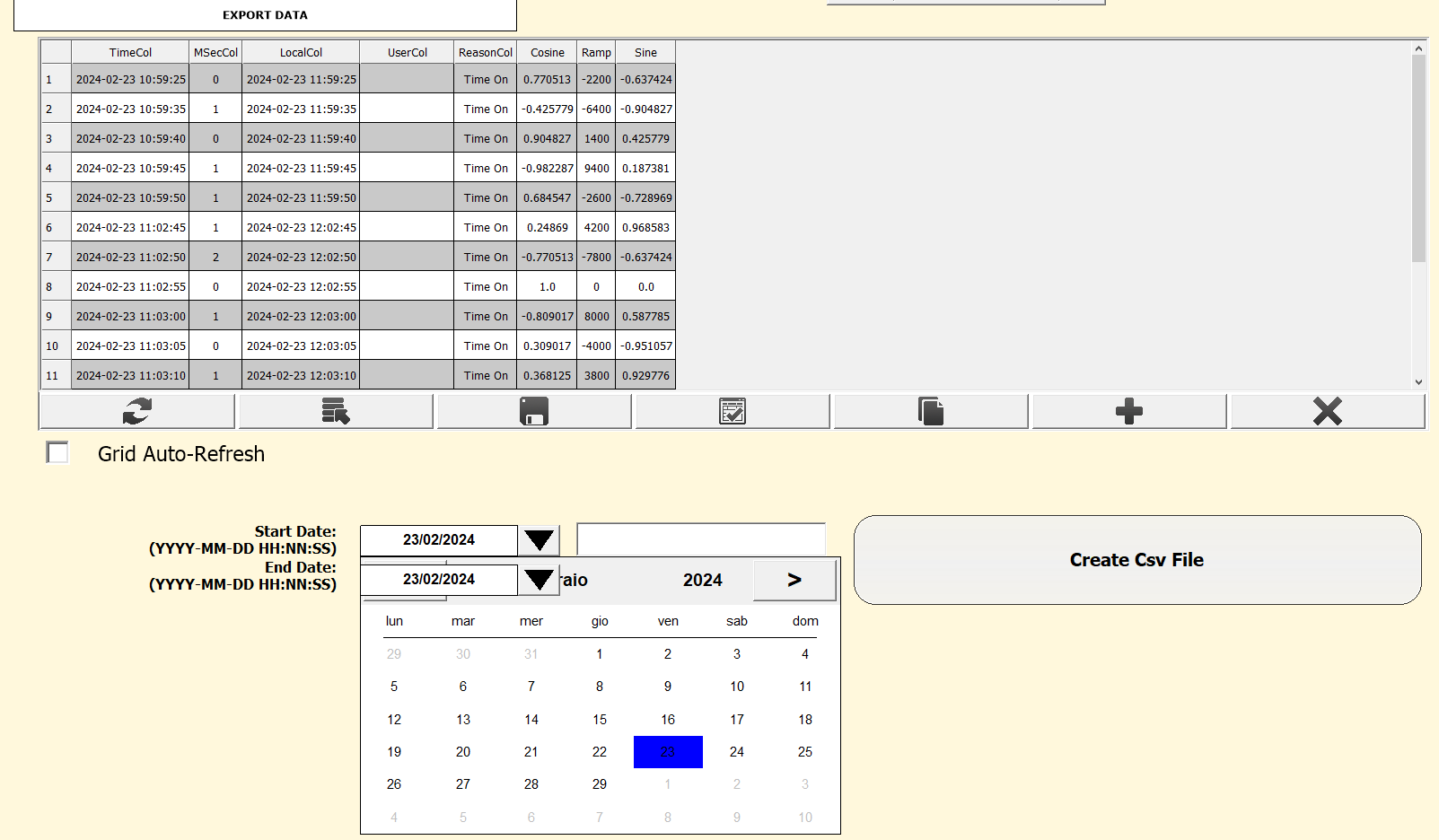
Grid Export CSV
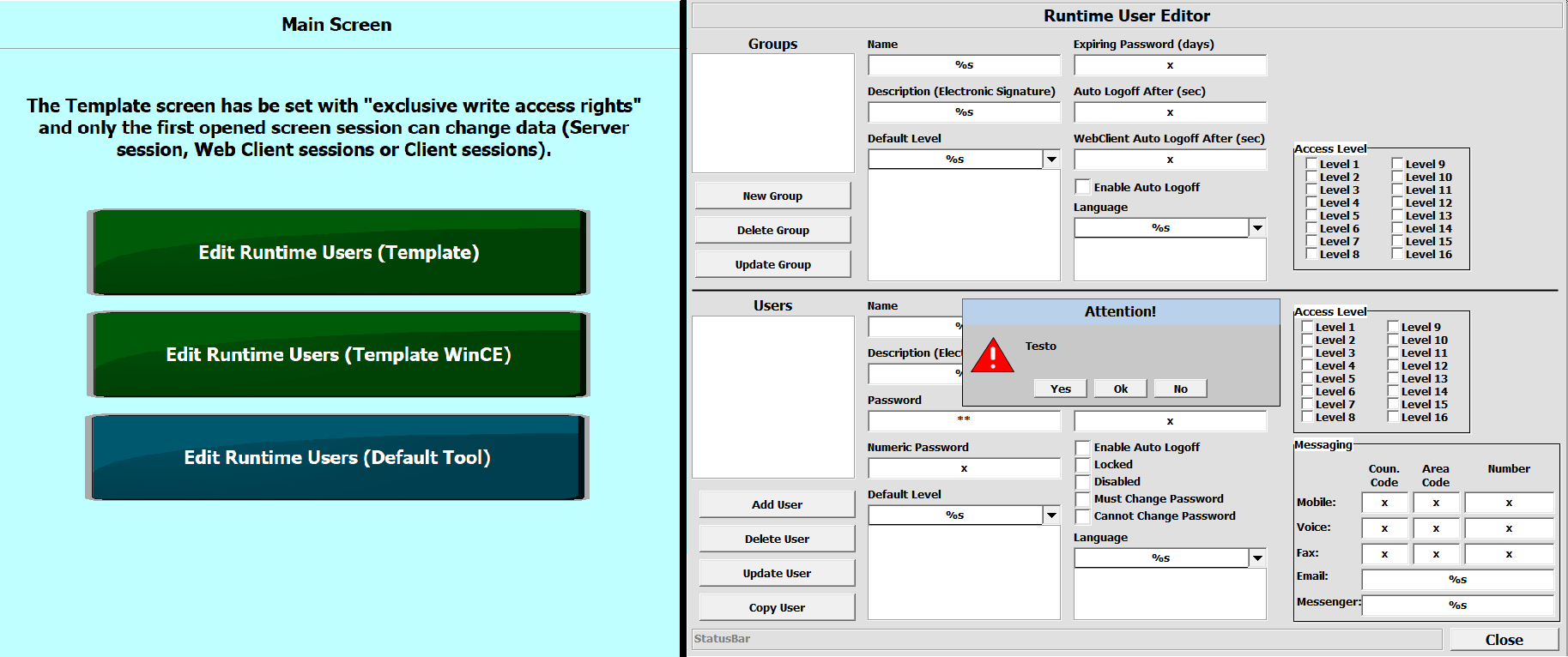
Runtime Users Management
Add/Remove a Pen from the Trend
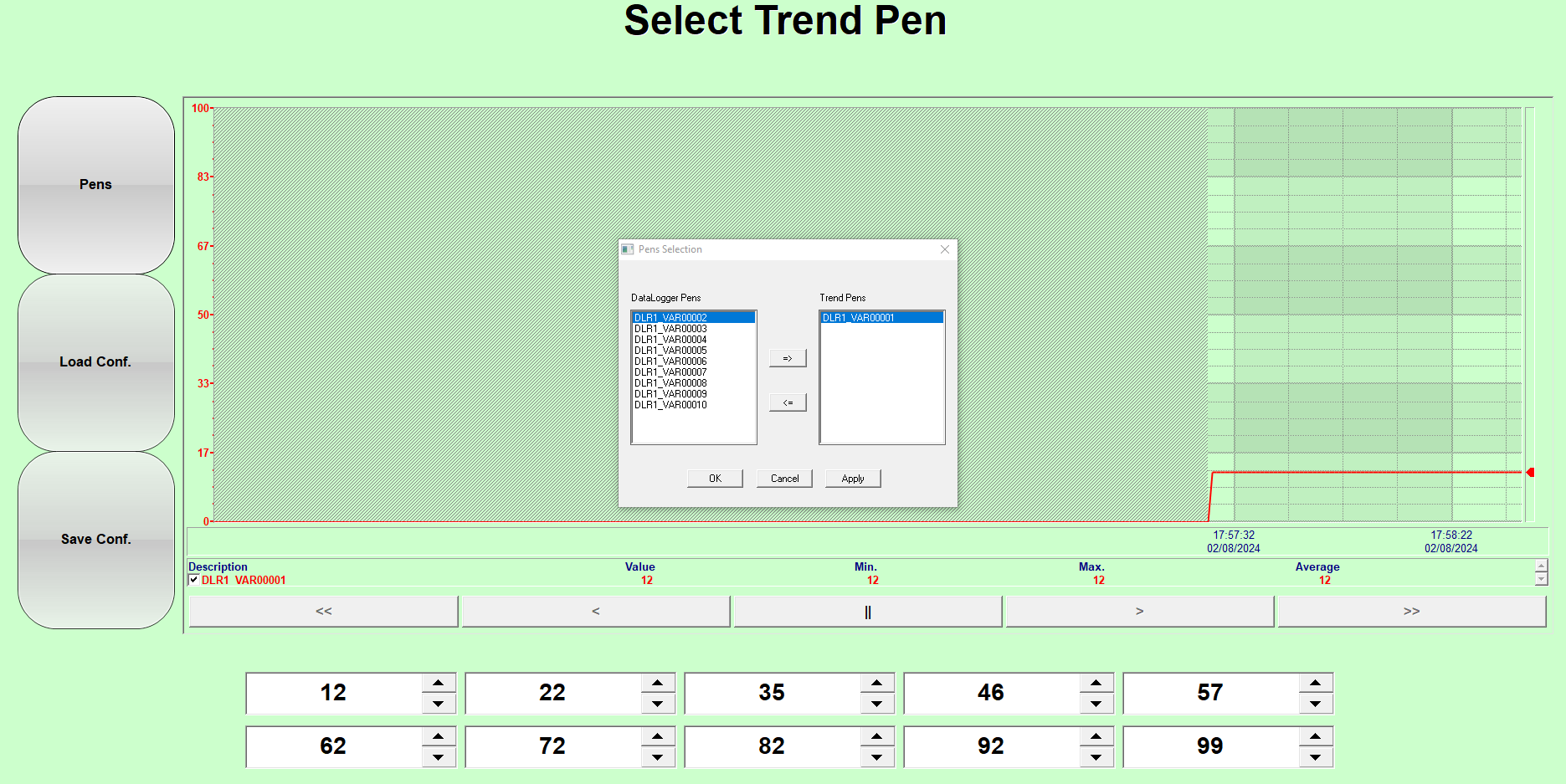
The example shows how to add
or remove a pen from a Trend using the AddPen and RemovePen
functions of the Trend. The code for managing of these functions,
inserted in the Pens button, presents the list of pens taken
from the project Data Logger and displayed via a VB Dialog.
For more information see the Help files in the RESOURCES of
the example itself.
Alias in Embedded Screen
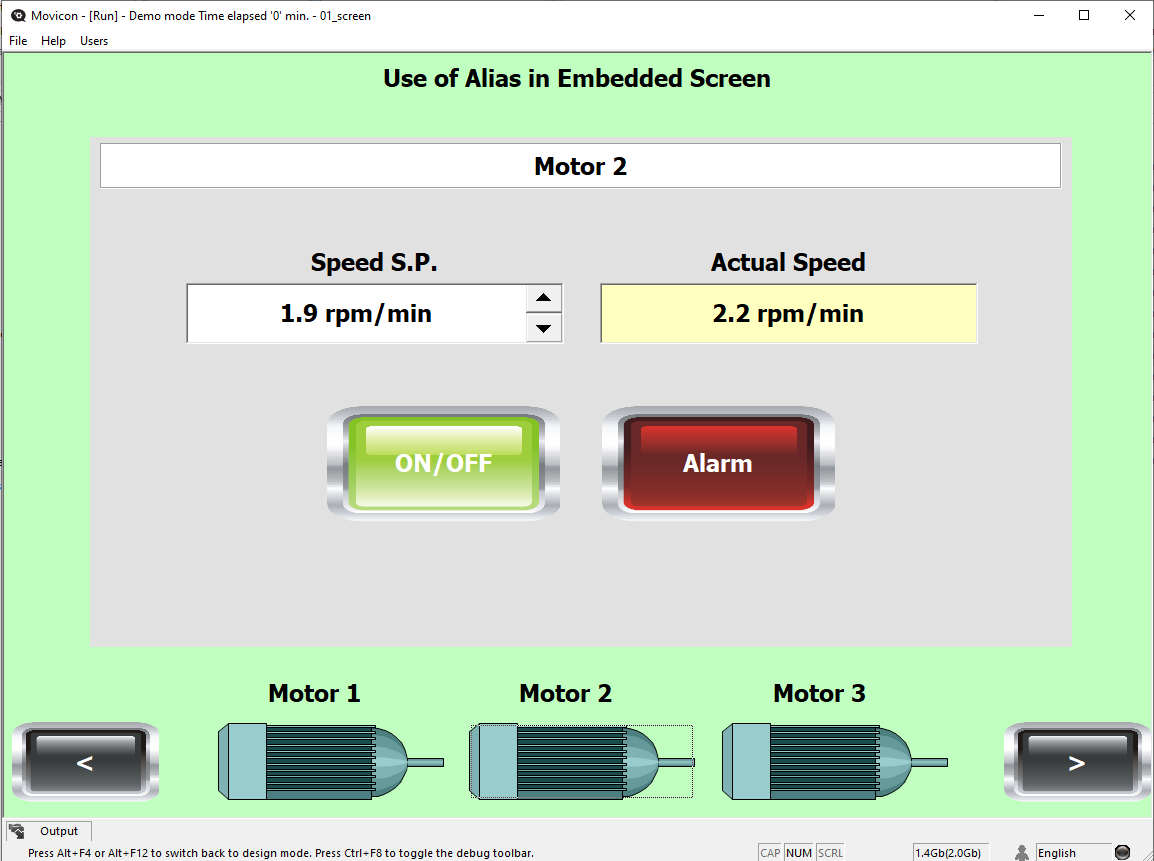
The example shows how you can
use screen Aliases to manage the parameterization of certain
variables. Specifically, this example uses Aliases to replace
the management of the Parameter Files of the screens. The
purpose is to be able to change the variables parameterized
of a screen without having to close and reopen the screen
itself.
For more information see the Help file in the RESOURCES folder
of the example itself.
Screen Alias Web
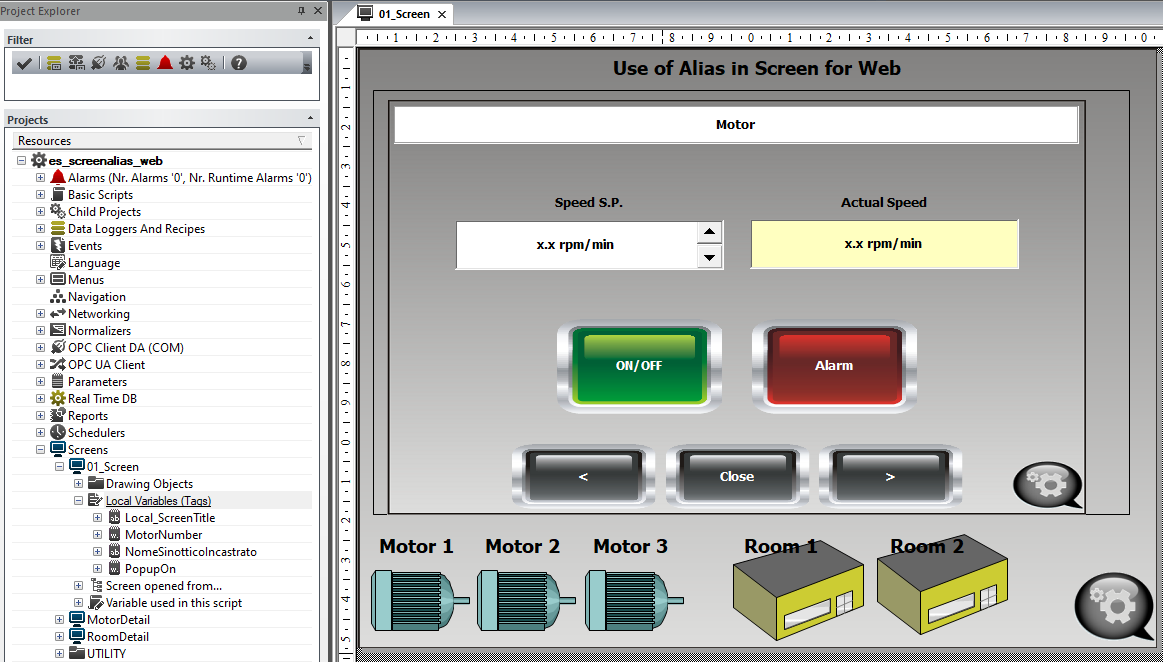
The example shows how you can
use screen Aliases to manage the parameterization of certain
variables. Specifically, this example uses Aliases to replace
the management of the Parameter Files of the screens. The
purpose is to be able to change the variables parameterized
of a screen without having to close and reopen the screen
itself.
The example is particularly suitable for use via Web Client
because of the introduction of Local Variables to the main
Screen.
The RESOURCES folder contains the Help file for the example
itself.
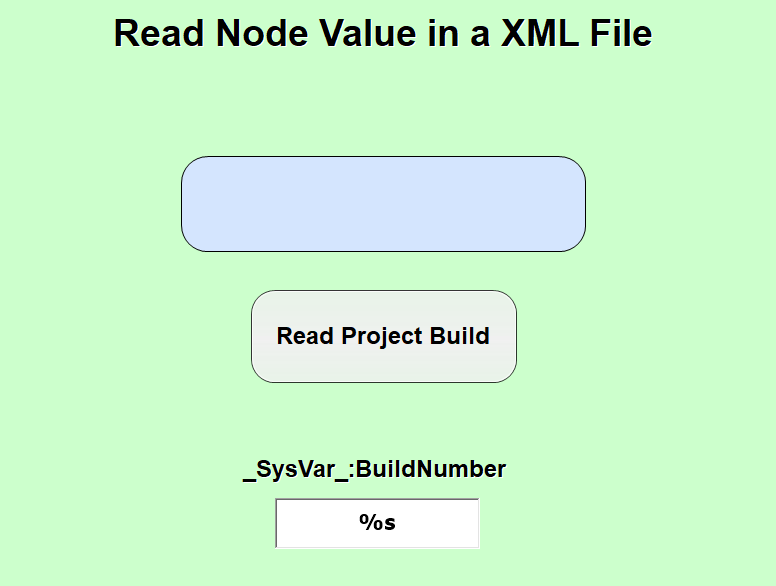
Project's Build using the Microsoft class “XML DOM Document”
Report Designer Parameters
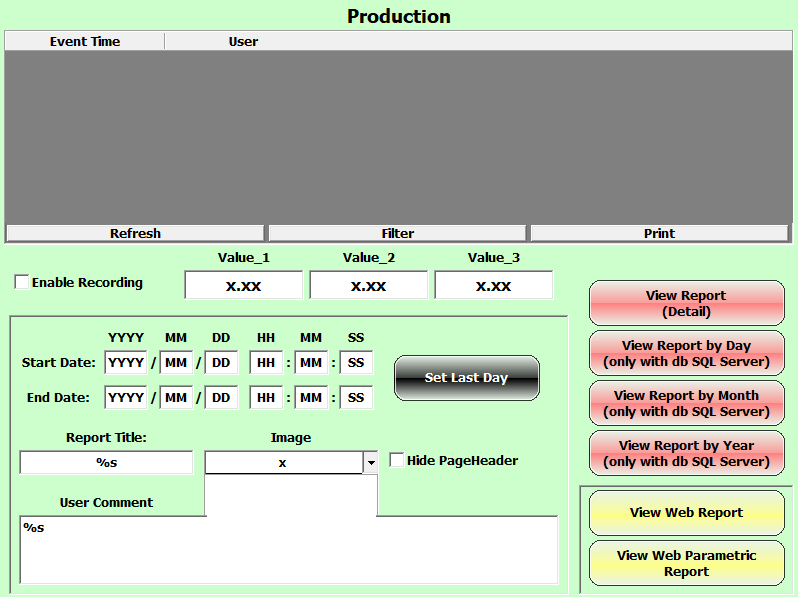
In the buttons of the example there are
VB Scripts in VB.NET that allow you to customize
every aspect of the DevExpress Report generated on the
Data Logger Resource.
In particular, the Query, values of the Parameter List
and visibility of the objects present in the Layout of the
Report are manipulated.
The Example is therefore particularly useful when you have to pass
parameters to the Report to interact not only with historical data
but also with the real-time values of the Project Variables.
Activation of the license Softkey in runtime